Recharge Now for ₹1000 & Get ₹1600* In Your Wallet. Use Code: FLAT600 | Limited Period Offer On First Recharge
*T&C Apply.
Signup Now
Multiple Pickup Locations
Add unlimited warehouses to simplify your logistics operations
Get Started
Do you have multiple warehouses or sell your products through various vendors? Make your order fulfillment easier by adding all your pickup locations to your Shiprocket account.
Manage Pickup Addresses Easily
Add & edit multiple pickup addresses in the Shiprocket Panel without a hassle. Here’s how:
Adding Pickup Addresses
Note : To upload multiple pick up addresses in bulk, follow the first two steps. Next, click on Upload file, download the sample file, fill in the details, and upload.
-
STEP 1
Go to Settings> Menu.

-
STEP 2
Click on the Pickup address option.
-
STEP 3
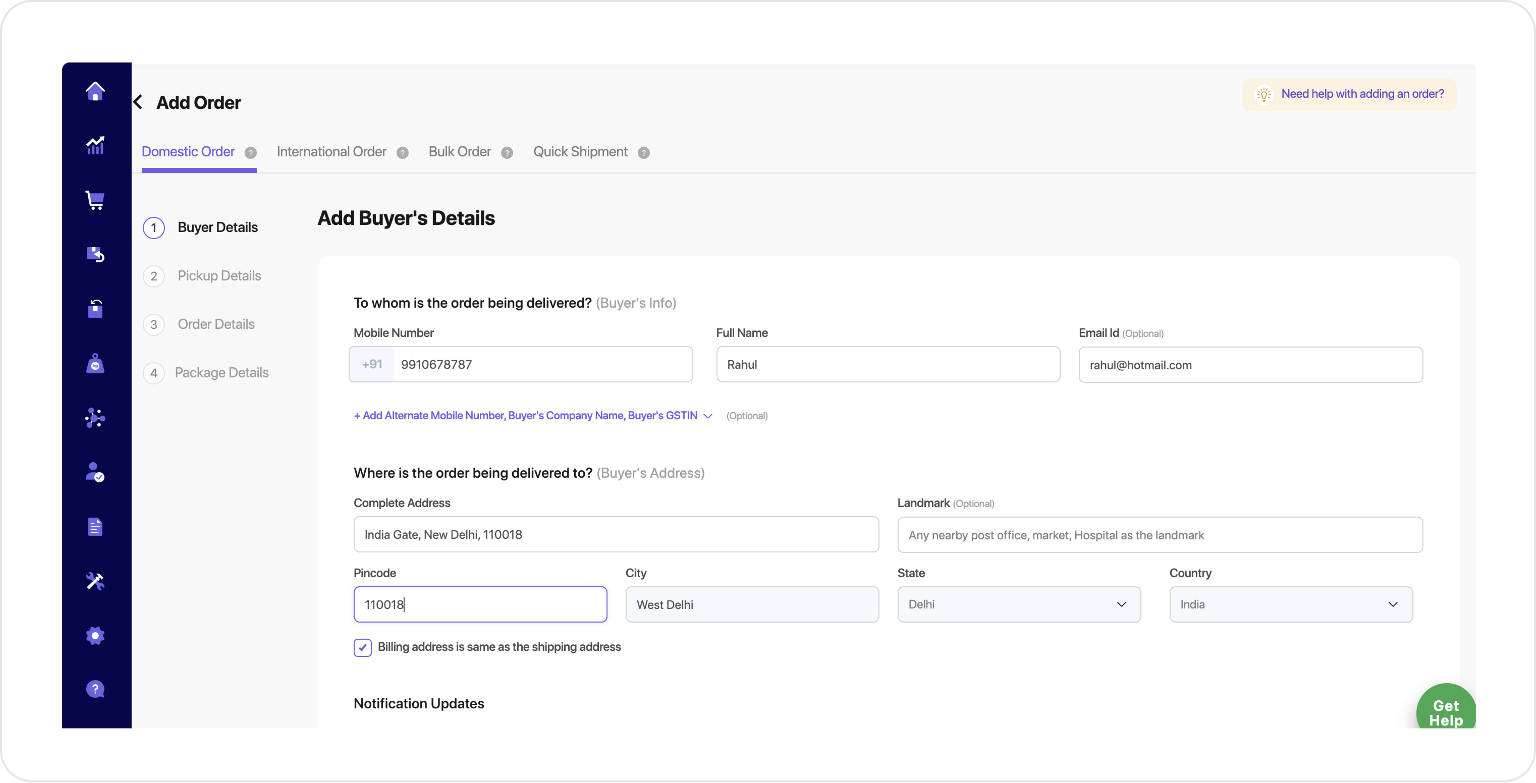
Next, click on the Add new pickup address option on the right & fill in your details
Editing Pickup Addresses
-
STEP 1
Go to Settings> Pickup Address> Manage Pickup Addresses.
-
STEP 2
Click on the Pickup address option.
-
STEP 3
Next, click on the Edit icon beside a pickup address to change the pickup name & contact details.
How is it beneficial for you?
-

Faster Delivery Time
Get your product delivered at your customers’ doorstep by selecting the nearest pickup location to your buyer’s address. It helps in faster delivery by eliminating the extra in-transit time.
-

Lower Shipping Cost
By selecting the nearest pickup location to the delivery location, you also reduce the overall shipping cost.
-

Highly Convenient
At Shiprocket, we let you add all your pickup locations by uploading a bulk pickup sheet. Now, add as many pickup locations as you want!
This feature is available in all our plans.


FAQs about Multiple pickup locations
If you have multiple warehouses or branches from where you sell your products, you don’t need to ship separately from each. You can just schedule pickups and ship your orders from every location while sitting anywhere in the world. Learn More
You need to Go to Settings → Menu → Pickup Address → Add Pickup Addresses
Yes. To do so, you have to Go to Settings → Pickup Address → Manage Pickup Addresses.
No. You just need to go to the settings in your Shiprocket account and add your addresses there. Get Started
No, you can add multiple addresses without paying anything extra.
- Recommendation Engine
- International Shipping
- Automated Shipping Solution
- Prepaid & Cash On Delivery
- Multiple Shipping Partners
- Lowest Shipping Rates
- Serviceable Pin Codes
- Sync & Import Orders
- Track Your Order
- Print Your Labels
- Zero Monthly Fees
- No Minimum Shipment
- Email & SMS Notification
- API Integration
- Reliable Support
- Multiple Pickup Locations
- eCommerce packaging